
ℹ️ Affiliate Disclosure: This article may contain affiliate links. If you book or purchase through these links, we may earn a commission at no additional cost to you.
Explore Effective Google Sheets Planner Templates
A Google Sheets planner works especially well when your schedule, tasks, trackers, and reference information need more structure than a blank calendar provides. The harder part is choosing a template that matches the way you actually plan. A weekly dashboard can be useful for appointments and tasks, but it will not replace a detailed project tracker, assignment organizer, budget sheet, or content calendar.
The Google Sheets planner templates below cover different organization problems rather than repeating the same weekly layout in different colors. The selection includes general weekly planning, task and project management, goals, habits, personal finances, meal planning, school assignments, content scheduling, and occasional-event planning.
Many additional planner templates are available, but these picks focus on layouts that solve clearly different scheduling, organization, and productivity needs.

The most useful Google Sheets planner depends on what you need to see in one place. Choose a weekly planner for recurring scheduling, a task or project dashboard for deadline-driven work, a goal or habit tracker for repeated progress entries, or a specialized spreadsheet when budgeting, schoolwork, meals, or content planning creates most of your organizational load.
Quick Picks
- Best for general weekly planning: Weekly Planner Template Excel — combines a weekly overview with daily tasks, habits, notes, and progress tracking.
- Best for task-heavy workflows: Task Tracker Template Spreadsheet Excel — uses status tracking, a dashboard, and a calendar to organize larger task lists.
- Best for projects: Project Management Spreadsheet Template — adds Kanban, Gantt, milestones, deadlines, and weekly organization.
- Best for personal goals: Goal Planner Template Spreadsheet — breaks goals into deadlines, categories, smaller tasks, and measurable progress.
- Best for students: Assignment Tracker Spreadsheet Template — keeps assignments, exams, projects, priorities, and deadlines together.
Google Sheets Planner Templates for Different Organization Needs
1. Weekly Planner Template Excel
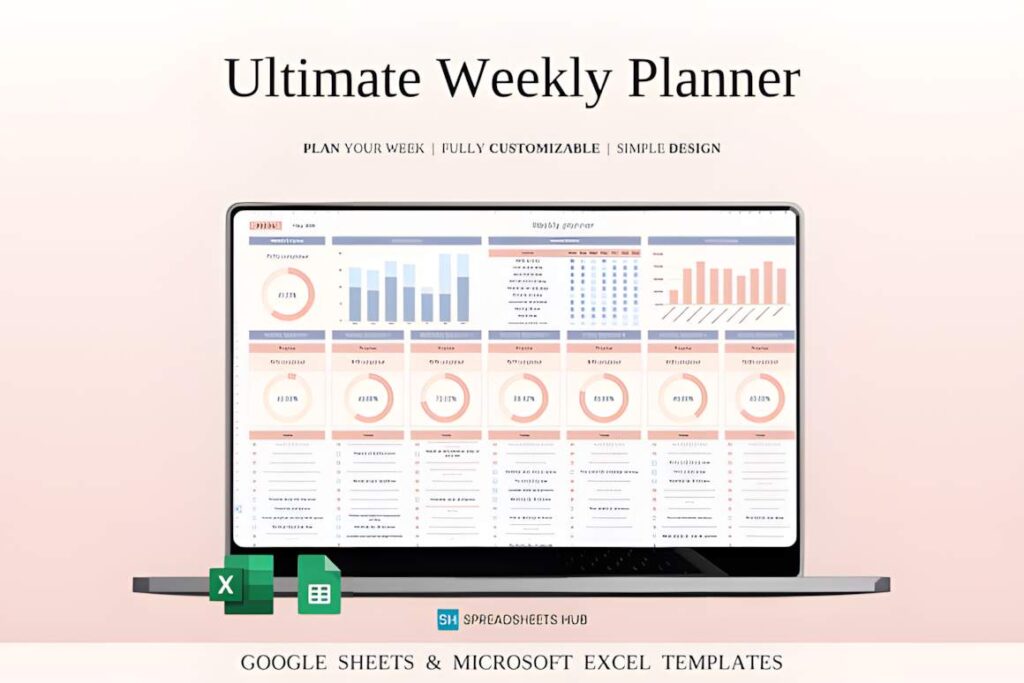
Weekly Planner Template Excel is a Google Sheets and Excel planner for people who want most short-term planning visible in one weekly system. Its weekly snapshot combines tasks, habits, and notes, while daily planning areas provide a more granular place to check off individual tasks.
The template also includes habit monitoring, percentage-based progress information, notes space, and a flexible starting date. That makes it broader than a simple seven-column schedule without turning it into full project-management software. I would choose it when the main requirement is seeing the current week and its recurring responsibilities together.
For complex work with multiple projects, milestones, or workflow stages, the dedicated project-management template later in this list provides more structure.
2. Task Tracker Template Spreadsheet Excel
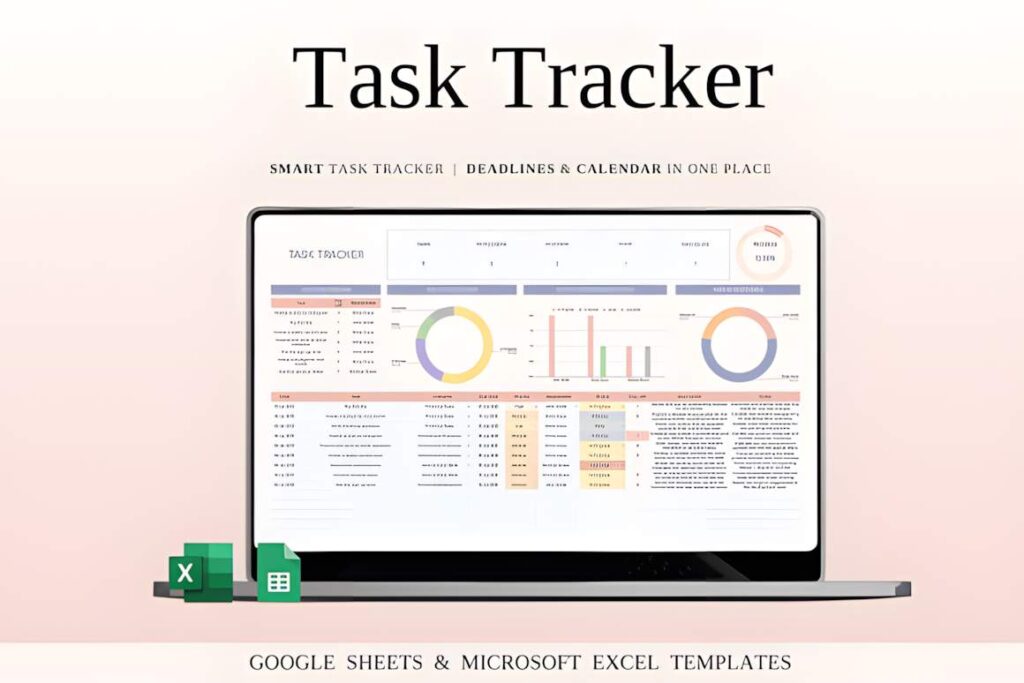
Task Tracker Template Spreadsheet Excel is designed for larger task lists where status and deadlines matter more than a traditional planner page. It works in Google Sheets and Excel and includes a dashboard showing task totals, progress, and completion percentages.
Tasks can be categorized with workflow states including In Progress, Under Review, Completed, and Cancelled. An integrated calendar adds a date-based view of deadlines, which is useful when a plain checklist no longer gives enough context. The structure can fit individual work, team responsibilities, or multiple active projects.
Choose the weekly planner instead if you primarily organize your life by day of the week and do not need formal task statuses or a larger workflow dashboard.
3. Project Management Spreadsheet Template
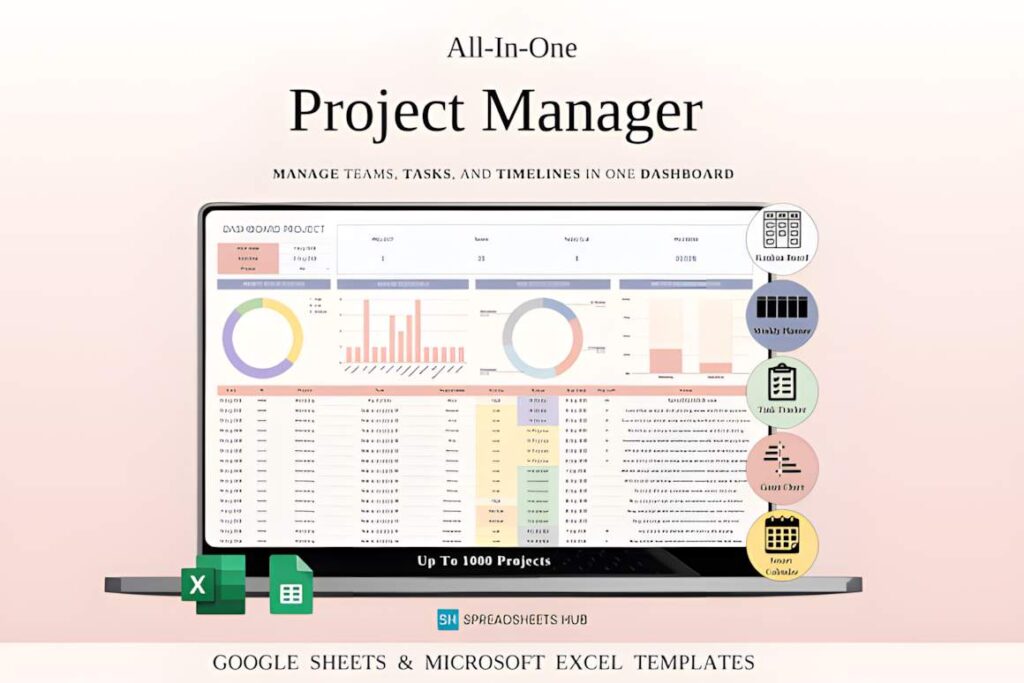
Project Management Spreadsheet Template is a Google Sheets and Excel system for planning work that has tasks, milestones, deadlines, and multiple workflow stages. It goes beyond ordinary to-do planning with project snapshots, task management, Kanban stages, a Gantt timeline, and a dynamic calendar.
A weekly organizer is also included, so short-term work can stay connected to the larger project structure. This makes the template more appropriate for launches, client work, team projects, or personal projects with several moving parts than a standard weekly planner.
The tradeoff is density. If you only need to record appointments and a modest task list, the extra project views may add more structure than necessary. For that workflow, the first or second template is easier to justify.
See Project Management Template
4. Goal Planner Template Spreadsheet
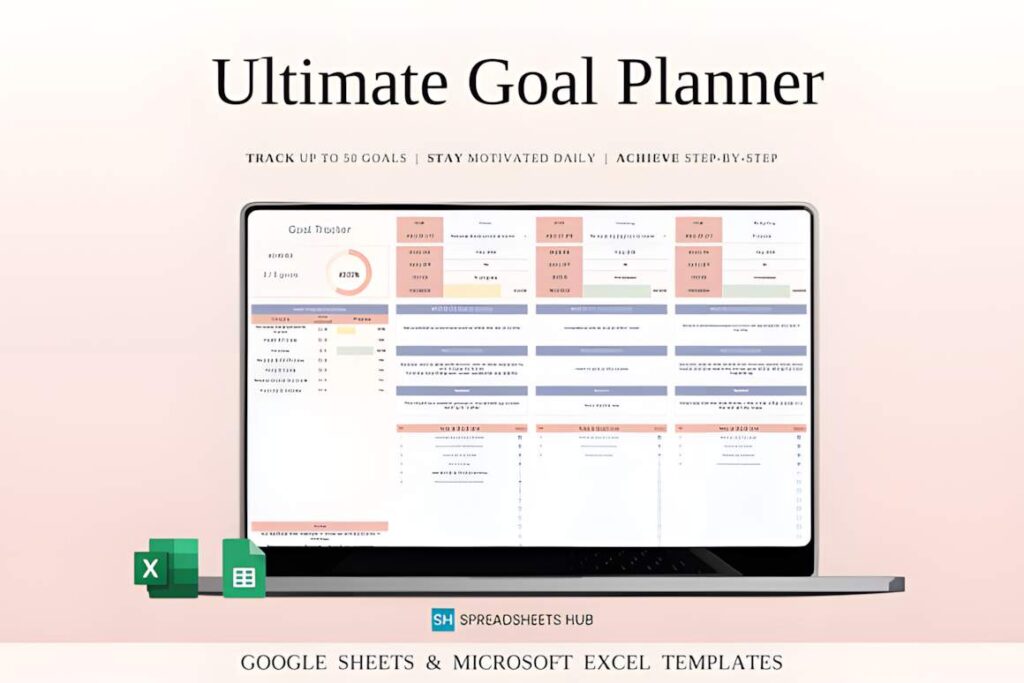
Goal Planner Template Spreadsheet is structured around turning larger goals into categorized tasks and deadlines rather than filling a conventional daily schedule. The Google Sheets and Excel template supports up to 50 goals and 20 custom categories, with separate smaller tasks attached to each goal.
Automatic percentage updates provide a quick view of recorded progress, and the template includes deadline countdowns plus space for recording why a goal matters and a planned reward. It makes the most sense when you need an action-plan structure around several medium- or long-term goals.
This is narrower than the weekly planner for appointments and routine scheduling. If most of your workload consists of independent tasks rather than goals broken into stages, the Task Tracker Template offers a more natural structure.
5. Google Sheets Habit Tracker
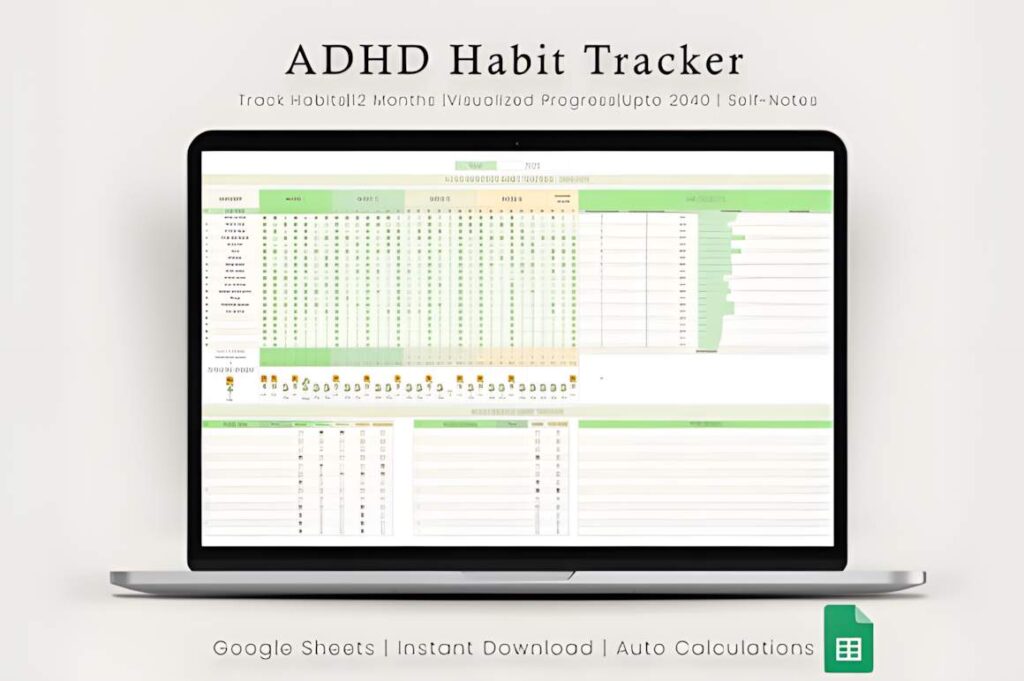
Google Sheets Habit Tracker is a dedicated habit-planning spreadsheet with daily, weekly, monthly, and annual tracking. Instead of treating habits as a small add-on to a general planner, it gives repeated activities their own tracking system with current and longest streak calculations.
The template includes 12 monthly sheets plus charts and graphs for reviewing recorded progress. Its sunflower-growing visual changes as habits are completed, giving the spreadsheet a more decorative feel than the mostly dashboard-based templates elsewhere in this roundup.
Choose it when recurring habits are the information you want to record most often. It is not a substitute for detailed calendar planning, project milestones, or assignment deadlines, so another template will fit better when those are the central problem.
See Google Sheets Habit Tracker
6. Budget Planner Excel | Rainbow Theme
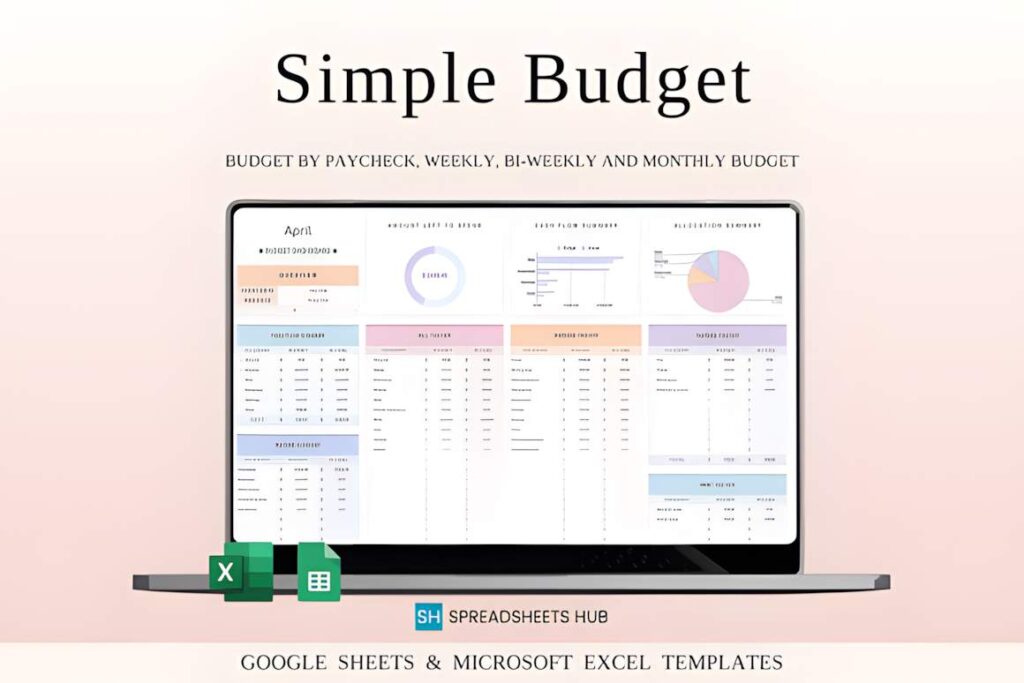
Budget Planner Excel | Rainbow Theme is a one-tab finance planner for Google Sheets and Excel. It organizes income, expenses, savings, bills, and debt in a spreadsheet that performs its own supported calculations after transactions are entered.
The layout supports monthly, weekly, or biweekly budgeting and includes customizable income and expense categories, balance tracking, spending graphs, an overview graph, and checkboxes for bills, debt, and savings. A separate goal-tracker tab adds a planning element without turning the spreadsheet into a broad life planner.
This template is useful when financial information is the organizational problem. It is much less appropriate as a replacement for a daily schedule or project tracker, and the bright rainbow styling may be more visual than readers who prefer a neutral spreadsheet want.
7. Meal Planner Template for Google Sheets
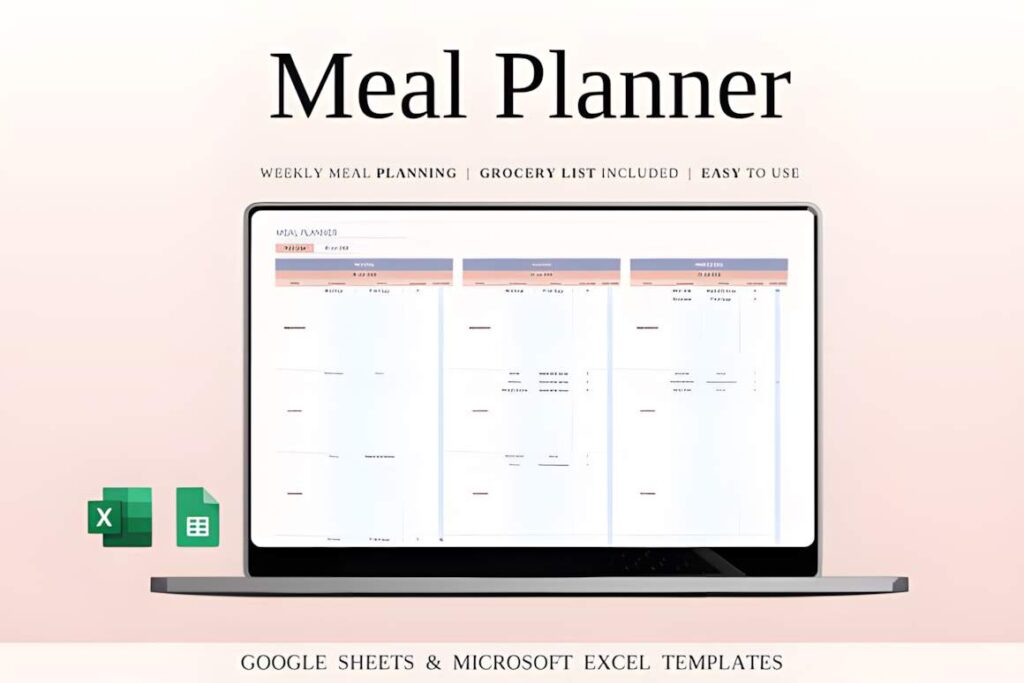
Meal Planner Template for Google Sheets is a focused weekly food-planning spreadsheet that connects meals with grocery organization. The Google Sheets and Excel template provides places for breakfast, lunch, dinner, and snacks rather than treating meals as a small note inside a general weekly planner.
Its grocery-list function is tied to the meal-planning workflow, and meal categories can be adjusted for different planning preferences. That makes the sheet practical for households or individuals who regularly plan several days of meals before shopping.
The narrow focus is also its limitation. It will not organize work tasks, meetings, study deadlines, or larger projects. Choose it as a dedicated companion spreadsheet when food planning is substantial enough to deserve its own system.
8. Assignment Tracker Spreadsheet Template
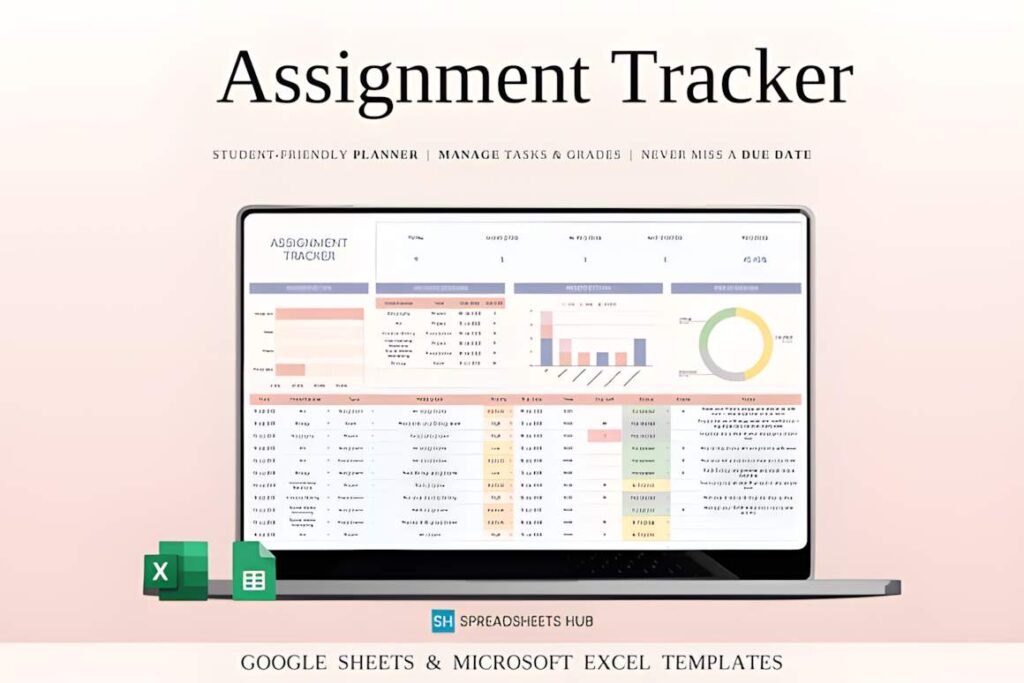
Assignment Tracker Spreadsheet Template is an academic organizer for Google Sheets and Excel that keeps assignments, exams, projects, presentations, priorities, and deadlines in one spreadsheet. It is more specific to schoolwork than adapting a generic task planner to several classes.
Visual status indicators show which work is completed, in progress, or pending, while a calendar-style overview places deadlines into a broader weekly or monthly context. That combination makes the template useful when several courses produce overlapping due dates.
Students who only need a simple weekly timetable may find the template more detailed than necessary. It makes more sense when the primary challenge is tracking deliverables across classes rather than planning every hour of the day.
9. Content Calendar, Google Sheets
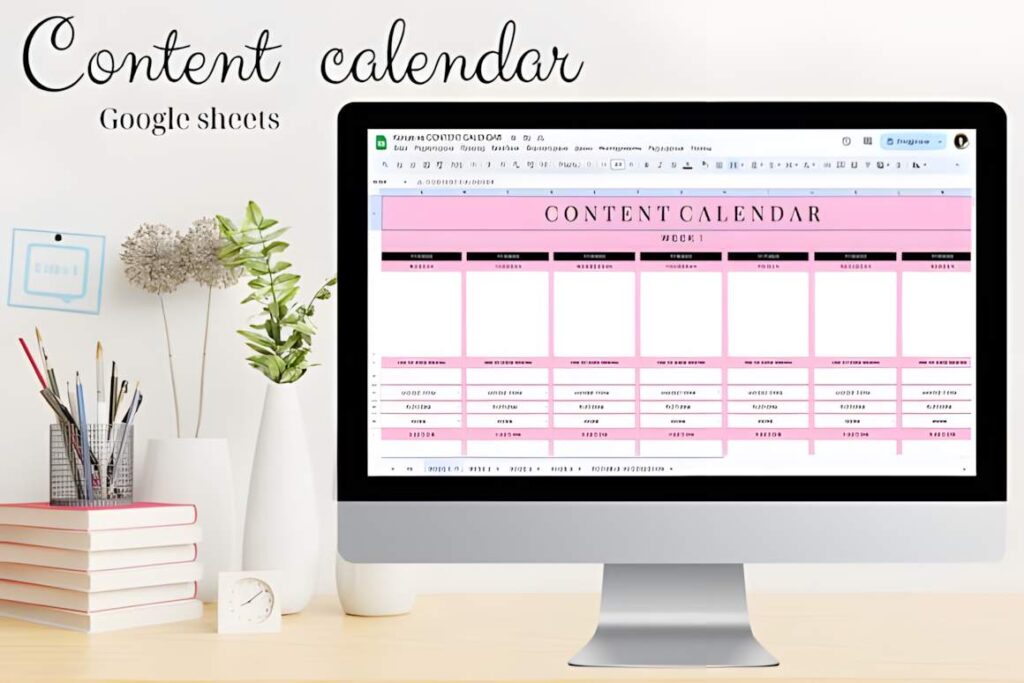
Content Calendar, Google Sheets is a planning template for organizing social-media and publishing workflows rather than personal appointments. It gives content creators and small businesses a spreadsheet-based place to plan scheduled content and track its workflow.
The listing describes a customizable Google Sheets structure in which colors, columns, formatting, and layouts can be adjusted. That flexibility is useful when different platforms or content types require their own fields instead of fitting into a fixed personal-planner page.
This template belongs in the roundup because content production creates a distinct planning problem, but it is specialized. Readers who do not schedule posts, campaigns, or publishing work will get more everyday value from the weekly or task-focused planners.
10. Holiday and Special Event Planners Excel
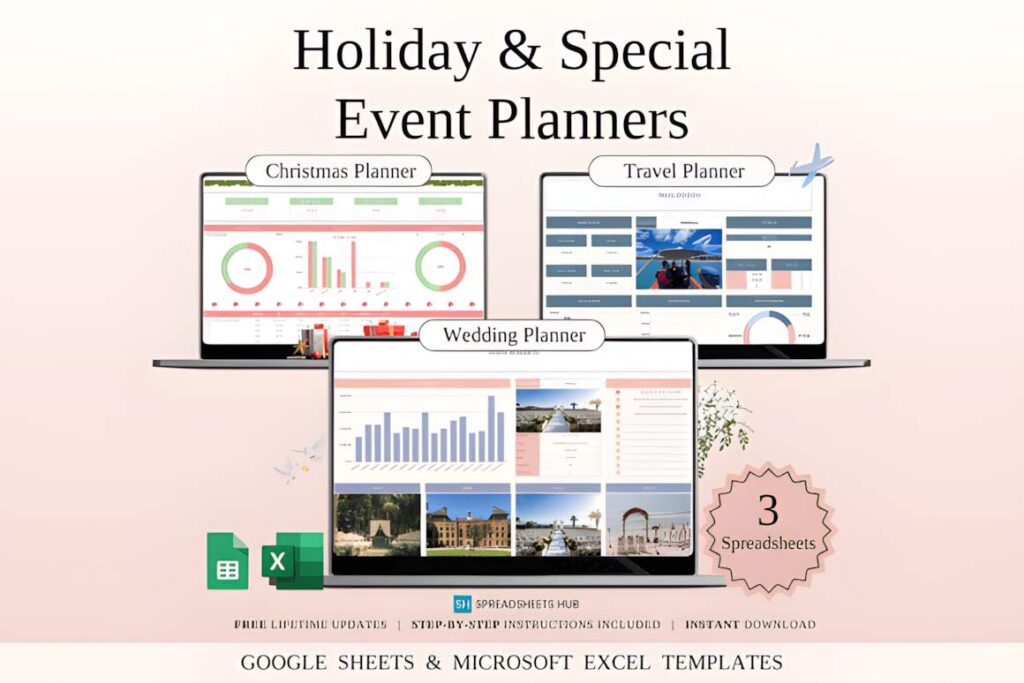
Holiday and Special Event Planners Excel is a Google Sheets and Excel bundle built for occasional planning rather than an everyday routine. It includes separate spreadsheet systems for Christmas, weddings, and travel, each organized around the information that particular event requires.
The Christmas planner covers areas such as gifts, meals, decorations, budgets, and shopping lists. The wedding planner adds budgeting, guests, timelines, and vendor coordination, while the travel planner covers itineraries, packing, accommodation details, and trip expenses. The files are designed to be editable and reusable for future events.
Because this is a multi-purpose event bundle, it is a poor fit for someone searching strictly for a day-to-day productivity dashboard. Its strength is giving infrequent but information-heavy events their own structured spreadsheets.
| Product | Best for | Style / Type | Project Fit |
|---|---|---|---|
| Weekly Planner Template Excel | General weekly planning | Weekly dashboard | Tasks, habits, notes, daily planning |
| Task Tracker Template Spreadsheet Excel | Large task lists | Task dashboard | Statuses, deadlines, calendar |
| Project Management Spreadsheet Template | Complex projects | Project management | Kanban, Gantt, milestones, tasks |
| Goal Planner Template Spreadsheet | Goal breakdowns | Goal planning dashboard | Goals, subtasks, deadlines, progress |
| Google Sheets Habit Tracker | Recurring habits | Habit tracker | Daily through annual tracking |
| Budget Planner Excel | Rainbow Theme | Personal finance organization | Budget spreadsheet | Income, expenses, savings, bills |
| Meal Planner Template for Google Sheets | Weekly meals | Meal planner | Meals and grocery planning |
| Assignment Tracker Spreadsheet Template | Students | Academic tracker | Assignments, exams, deadlines |
| Content Calendar, Google Sheets | Content scheduling | Editorial calendar | Social and publishing workflows |
| Holiday and Special Event Planners Excel | Occasional events | Planner bundle | Holidays, weddings, travel |
How to Build a Practical Google Sheets Planning System
A Google Sheets planner becomes easier to maintain when each spreadsheet has a clearly defined job. Begin with the planning frequency that drives most of your decisions. If you arrange work one week at a time, a weekly planner should probably remain the main dashboard. If deadlines and task statuses determine what you do next, start with a task tracker instead.
Specialized information does not always belong in the main planner. A budget can contain dozens or hundreds of transactions. A content calendar may require platform names, publishing dates, formats, campaign details, and workflow statuses. Academic tracking can require courses, assignments, exams, and due dates. Moving those records into focused sheets prevents a general planner from becoming an oversized database.
Think carefully about how much detail you need to see at once. A weekly overview is useful for scanning several days quickly, but it offers less room for extensive project details. Project-management spreadsheets solve the opposite problem: they can hold more status information, yet they take longer to update and review. Use the more complex structure only when the extra fields affect real decisions.
Automated dashboards and charts are most useful after you identify a question they answer. A progress percentage can show how much of a task list is marked complete. A calendar can expose crowded deadline periods. Budget graphs can summarize recorded transactions. Habit charts can show entries across a month. If you never review that summary, the underlying tracking step becomes extra maintenance with little planning value.
It can also be useful to separate planning from tracking. Planning answers what you intend to do next; tracking records what has already happened. Weekly schedules and project calendars lean toward planning, while habit logs and transaction sheets contain more historical data. Combining both is reasonable when the information stays readable, but there is no advantage in forcing every category into a single workbook.
For phone use, keep frequently edited fields easy to reach. Large dashboards, wide tables, and Gantt views are naturally easier to inspect on a larger screen. A spreadsheet that looks compact on a laptop can require substantial horizontal scrolling on a phone. Decide where you will perform most of the editing before choosing a very dense layout.
Before Downloading: Avoid Planner Overlap
One common spreadsheet-planning mistake is creating several places for the same information. If a task appears in a weekly planner, a project sheet, and a separate task tracker, every status change may need to be entered three times.
- Choose one main location for everyday tasks.
- Use specialized trackers only for information the main planner cannot represent clearly.
- Avoid duplicating the same deadlines across several sheets unless you have a specific reason.
- Use dashboards when their summaries influence a planning decision.
- Archive completed projects or periods instead of letting active views grow indefinitely.
A smaller set of clearly defined sheets is usually easier to maintain than an all-in-one system containing every possible tracker.
Which Google Sheets Planner Template Should You Choose?
If you want one straightforward place to plan the current week, Weekly Planner Template Excel covers tasks, habits, notes, and daily planning without requiring a full project system.
If your work is driven by individual deadlines and task statuses, Task Tracker Template Spreadsheet Excel makes more sense. For work involving milestones, multiple workflow stages, Kanban, or timelines, move up to the Project Management Spreadsheet Template.
For a narrower personal workflow, choose the template that matches the information you repeatedly manage: Goal Planner Template Spreadsheet for structured goals, Google Sheets Habit Tracker for recurring habits, or Budget Planner Excel | Rainbow Theme when personal finance needs its own organized spreadsheet.
Students will get more relevant fields from the Assignment Tracker Spreadsheet Template, while creators managing publishing schedules should consider Content Calendar, Google Sheets. The right template is the one whose structure matches the decisions you make repeatedly, not the one with the most tabs.
Frequently Asked Questions
What should a Google Sheets planner include?
A useful Google Sheets planner should include only the views and fields needed for the planning routine it serves. A weekly planner may need daily tasks, notes, habits, and a weekly overview, while a project planner may require statuses, deadlines, milestones, calendars, or timelines. Extra trackers are useful only when you will maintain and review them regularly.
Are Google Sheets planners good for task management?
Google Sheets planners can work well for task management when you want customizable rows, status fields, deadlines, checkboxes, formulas, and calendar or dashboard views. A simple weekly sheet is enough for smaller task lists. Larger workloads are easier to manage with a dedicated task or project template that separates workflow status from the basic task description.
Should I use one Google Sheets planner for everything?
One Google Sheets planner is not necessary for every type of information. A main weekly or task planner can handle everyday work, while budgeting, meal planning, assignments, habits, or content schedules may be clearer in dedicated spreadsheets. Separate sheets make sense when each category requires different fields and prevents the primary planner from becoming unnecessarily dense.
Can I use these planner templates in Microsoft Excel?
Some of the planner templates in this roundup support both Google Sheets and Microsoft Excel, but compatibility varies by product. Templates such as the weekly, task, project, goal, meal, assignment, budget, and event planners explicitly list both platforms. Google Sheets-specific products may not provide equivalent Excel functionality, so check the current product details before choosing a template.