
ℹ️ Affiliate Disclosure: This article may contain affiliate links. If you book or purchase through these links, we may earn a commission at no additional cost to you.
Explore the Best Google Sheets Planner Templates
A blank spreadsheet is flexible, but building a useful planning system from scratch can quickly become its own project. A well-designed Google Sheets planner can remove that setup work by giving you ready-made views for weekly schedules, tasks, projects, goals, or recurring habits. The important part is choosing a template that matches the way you actually plan. A weekly overview is useful for seeing several days at once, while a task tracker makes more sense when deadlines, priorities, and status matter. Project planners add another layer for milestones and team responsibilities, and goal or habit trackers focus on progress over longer periods.
Many additional planner templates are available, but these picks focus on layouts that solve clearly different scheduling, organization, and productivity needs.

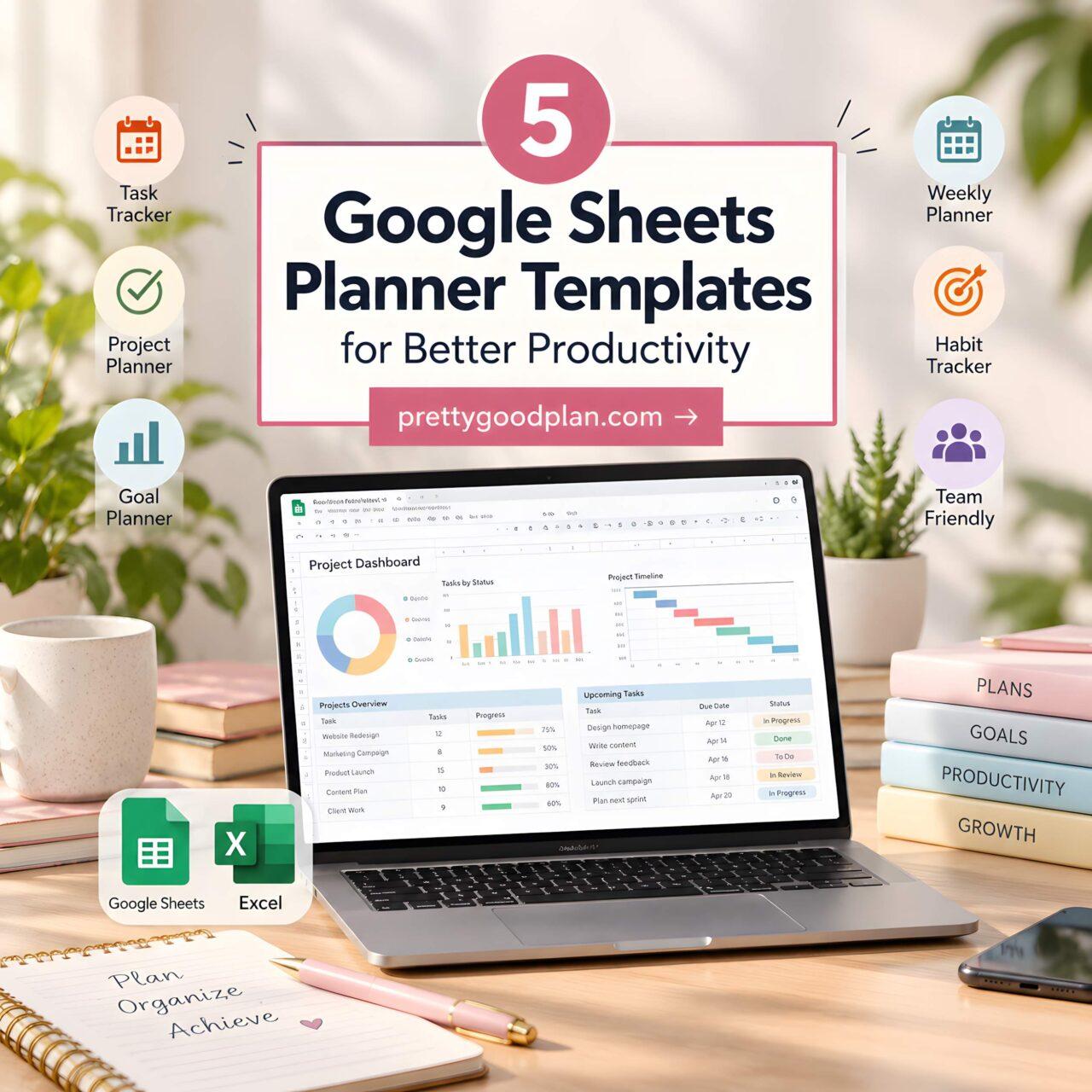
The most useful Google Sheets planner depends on what you need to see regularly. Choose a weekly planner for an at-a-glance schedule, a task tracker for deadlines and status, a project-management spreadsheet for multi-step work, a goal planner for larger objectives, or a habit tracker for recurring activities. The five options below are built for Google Sheets and cover those distinct workflows.
What to Look for in a Google Sheets Planner
Start with the level of detail you actually need. A weekly planner works well when appointments, daily tasks, notes, and routines can fit into one recurring view. If you spend more time managing individual assignments than planning entire days, a dedicated task tracker gives those items more structure through fields such as status, priority, deadline, and responsibility.
For work that contains several stages, look beyond a simple to-do list. A project planner can combine task records with timelines, milestones, calendars, or visual workflow views. That extra structure is useful for projects, but it can feel excessive for someone who only wants to map out next week.
Goal and habit templates solve different problems again. Goal planners are better suited to objectives that need deadlines and smaller action steps. Habit trackers are designed around repeated check-ins, so they make more sense for recurring routines than one-time tasks. Also check whether a template works only in Google Sheets or supports Excel as well, especially if you regularly move files between the two platforms.
Quick Picks
Best for weekly planning: Weekly Planner Template Excel — combines a weekly snapshot with daily tasks, habits, notes, and progress tracking.
Best for task management: Task Tracker Template Spreadsheet Excel — adds status, deadlines, priorities, responsibility fields, and a task dashboard.
Best for projects: Project Management Spreadsheet Template — includes task management alongside Kanban, Gantt, calendar, and project-summary views.
Best for long-term goals: Goal Planner Template Spreadsheet — breaks larger goals into smaller tasks with categories, deadlines, and progress tracking.
Best for recurring routines: Habit Tracker for Google Sheets | Excel — tracks daily habits with checkboxes, completion data, and weekly and monthly views.
Google Sheets Planner Templates for Different Productivity Workflows
1. Weekly Planner Template Excel
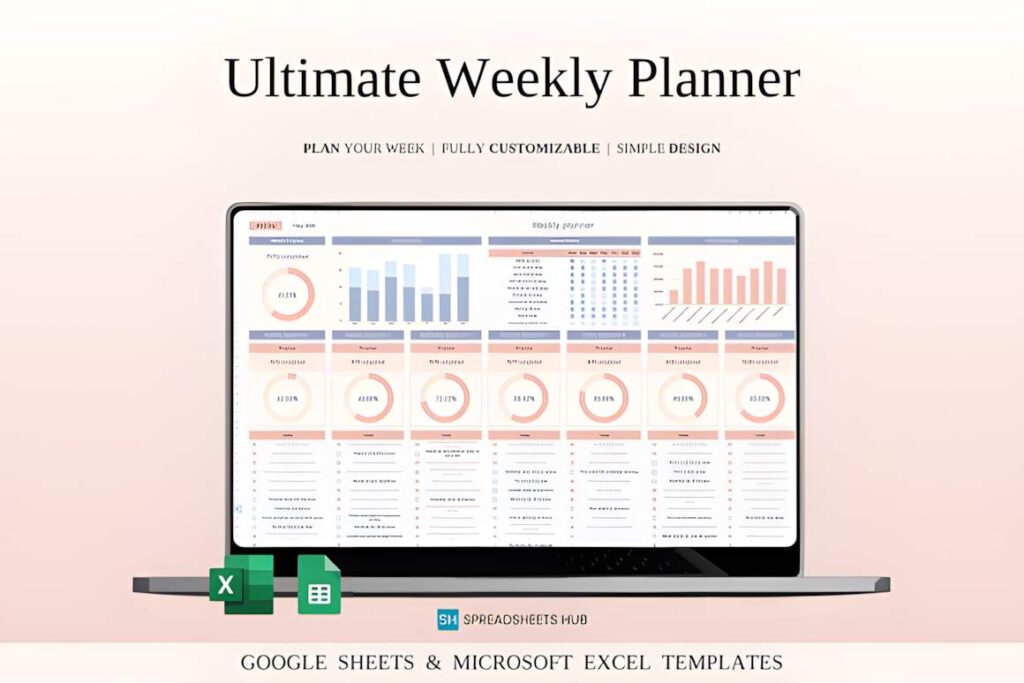
Weekly Planner Template Excel is a Google Sheets and Excel planner for people who want most of their short-term planning visible in a single weekly system. Its weekly snapshot brings together daily tasks, habits, notes, and percentage-based progress information, while the start date can be changed rather than being tied to a fixed calendar week.
This is the broadest general-purpose option in the roundup. It makes sense when your planning routine mixes scheduled work, flexible tasks, notes, and recurring habits. The tradeoff is that someone who manages detailed projects or large task lists may prefer a specialized tracker with more fields for ownership, status, deadlines, or dependencies.
2. Task Tracker Template Spreadsheet Excel
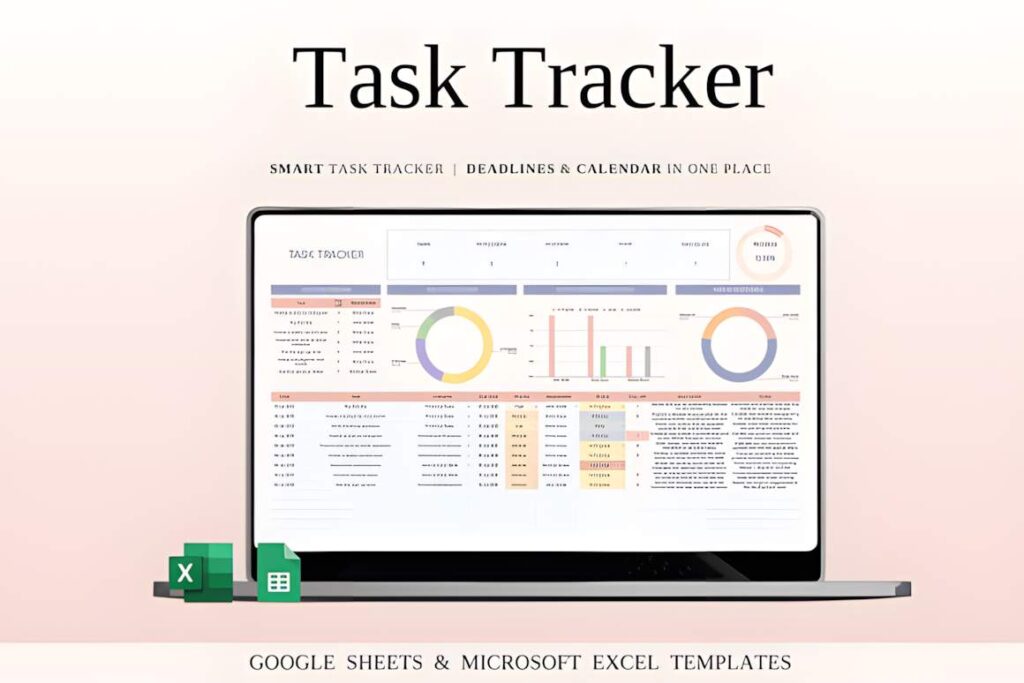
Task Tracker Template Spreadsheet Excel is built around individual tasks rather than a traditional calendar-style planner. The Google Sheets and Excel template includes an overview dashboard, task-status tracking, an integrated calendar, upcoming deadlines, a detailed task log, responsibility fields, and customizable categories and priorities.
Choose this when the main question is not “What does my week look like?” but “What needs to be done, by whom, and by when?” It suits freelancers, small teams, and personal workflows with many parallel tasks. For a lighter routine built around days of the week rather than task records, the Weekly Planner Template is easier to scan.
3. Project Management Spreadsheet Template
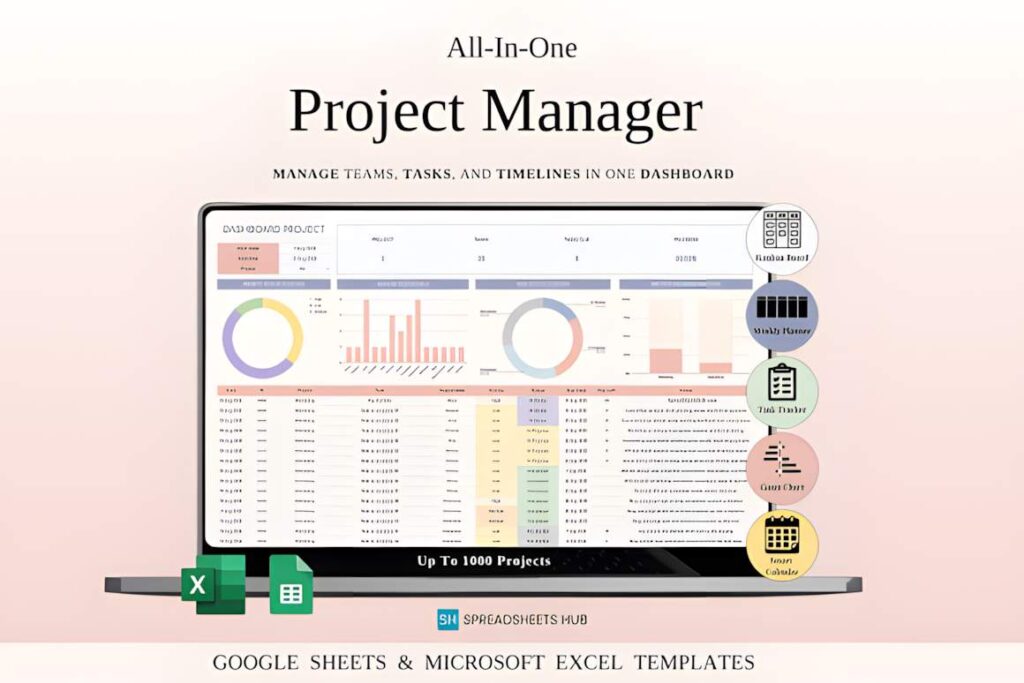
Project Management Spreadsheet Template is the most project-focused option here. It supports Google Sheets and Excel and combines task management with a project snapshot, Kanban workflow, Gantt timeline, weekly organizer, dynamic calendar, team assignments, visual analytics, and sorting or filtering by fields such as project, priority, team member, or tags.
The extra views matter when work moves through several stages or several people are involved. A freelancer could also use it to separate client projects and deadlines. That depth is unnecessary for a simple personal to-do list, though. The Task Tracker gives individual tasks plenty of structure without turning the spreadsheet into a broader project-management workspace.
See Project Management Template
4. Goal Planner Template Spreadsheet
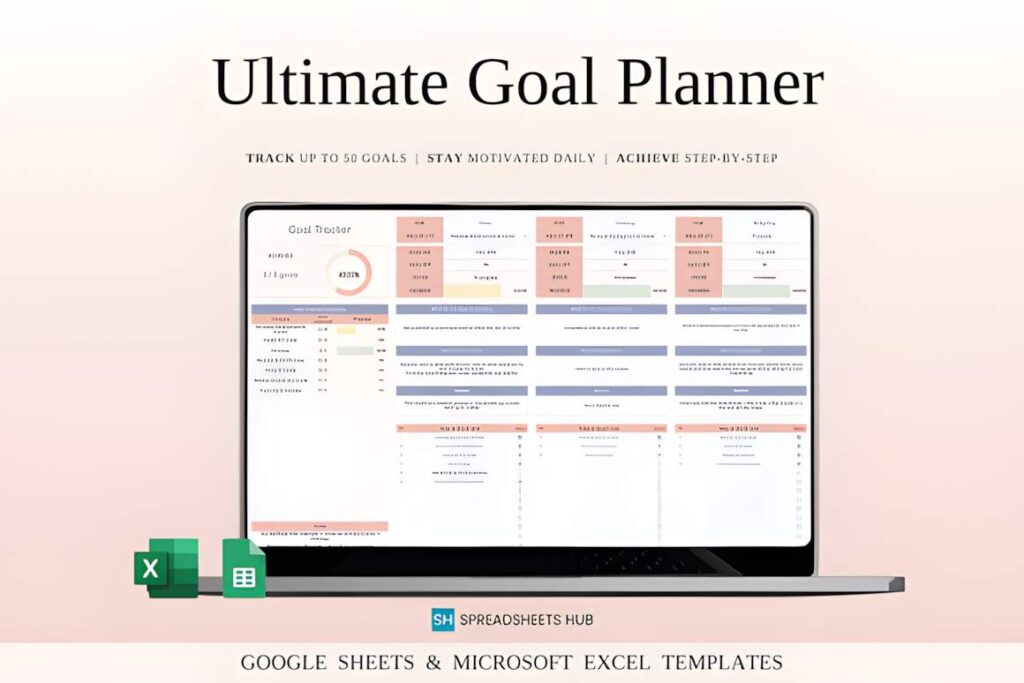
Goal Planner Template Spreadsheet is designed for objectives that need more structure than a single line on a to-do list. The Google Sheets and Excel template can track up to 50 goals, organize them into custom categories, assign deadlines, calculate progress percentages, and divide an individual goal into smaller tasks.
This format makes the most sense for goals that unfold over several weeks or months and need intermediate actions. It is less useful as a day-to-day appointment planner because its core structure centers on objectives and progress rather than a weekly schedule. Pairing goal planning with a simpler weekly routine may be more practical than forcing every daily task into the goal system.
5. Habit Tracker for Google Sheets | Excel
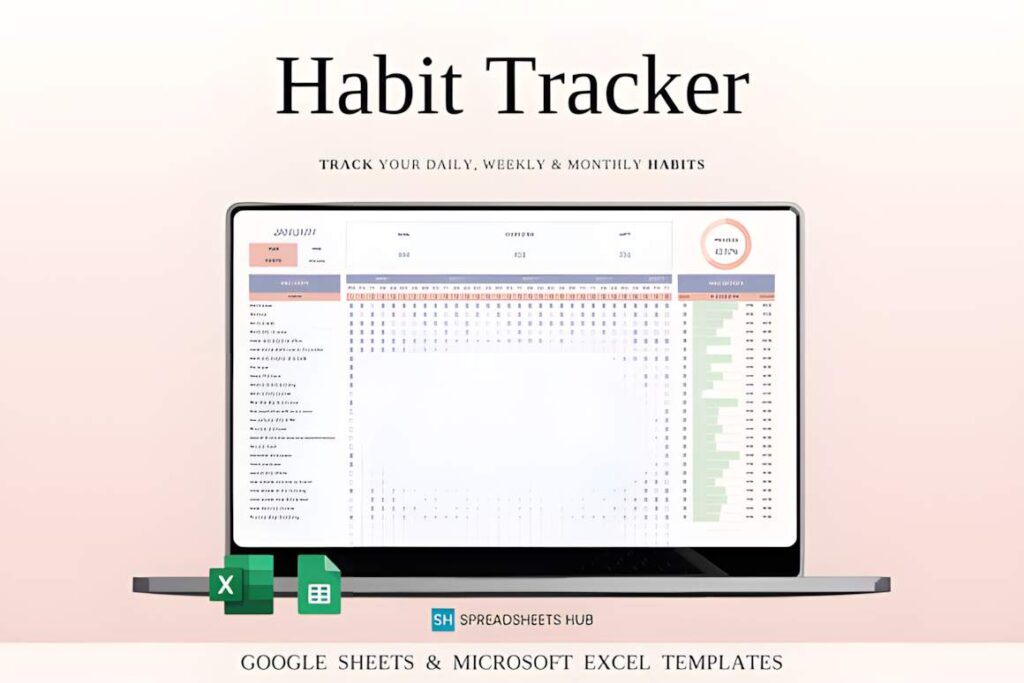
Habit Tracker for Google Sheets | Excel focuses on repeated activities rather than one-time tasks. It can track up to 30 daily habits and includes checkboxes, completion counts, daily, weekly, and monthly progress views, charts, percentage calculations, weekly habits, and a notes area. The download includes versions for both Google Sheets and Excel.
This template is useful when frequency matters more than deadlines: reading, exercise, recurring household tasks, or another activity you want to log regularly. It is deliberately narrower than the Weekly Planner or Goal Planner. If most of your entries happen once and have due dates, a task tracker will fit that workflow better than a habit grid.
Google Sheets Planner Template Comparison
| Product | Best for | Style / Type | Project Fit |
|---|---|---|---|
| Weekly Planner Template Excel | Weekly overview | Weekly planner | Personal, study, or work weeks |
| Task Tracker Template Spreadsheet Excel | Deadlines and task status | Task dashboard | Personal tasks, freelance work, teams |
| Project Management Spreadsheet Template | Multi-step projects | Project management system | Projects, clients, team workflows |
| Goal Planner Template Spreadsheet | Breaking down larger goals | Goal planner | Longer-term personal or work goals |
| Habit Tracker for Google Sheets | Excel | Recurring activities | Habit tracker | Daily and weekly routines |
How to Choose a Google Sheets Planner You Will Actually Use
The most elaborate spreadsheet is not automatically the most useful one. A recurring theme in productivity discussions is the tension between a system that is too simple to handle real work and one that takes too much time to maintain. Spreadsheet users also mention the advantage of seeing a large amount of work at once, along with the drawback that moving or updating items can be less convenient than in a dedicated scheduling app.
Start by deciding what the spreadsheet needs to represent. If you mostly think in days, a weekly planner is the natural starting point. You can open one view, look across the week, and decide where tasks and notes belong without maintaining a large database of individual records.
If work enters your system as separate tasks with different priorities and deadlines, use a task tracker instead. Fields for status and responsibility become valuable once a plain checklist stops giving you enough context. For several related tasks that collectively form a deliverable, a project planner adds another level: milestones, timelines, workflow stages, and project-level views.
Goal planners work on a longer horizon. A goal such as completing a course, preparing a launch, or reorganizing a home office may need several intermediate actions rather than a single checkbox. That is different from habit tracking, where the same action repeats and the useful information is how often it was completed.
Also consider how much spreadsheet maintenance you are willing to do. Community discussions around Google Sheets project management repeatedly raise the practical problem of keeping records updated, particularly when several people are involved. A spreadsheet can hold sophisticated dashboards and fields, but those views are only useful when the underlying task information is maintained.
For that reason, choose the narrowest template that covers your real workflow. A personal weekly plan does not need a full Kanban and Gantt system. A multi-client project probably needs more than seven boxes labeled Monday through Sunday. The structure should match the information you need to review, not the maximum number of features available.
Which Google Sheets Planner Should You Choose?
If you mainly want one place to map out the coming week, Weekly Planner Template Excel is the most straightforward starting point. It keeps the focus on the week without requiring a full task-management database.
If deadlines, priorities, and task status matter more than a calendar-style overview, Task Tracker Template Spreadsheet Excel makes more sense. For work made up of several connected stages, Project Management Spreadsheet Template adds the project-level views that a basic tracker lacks.
Choose Goal Planner Template Spreadsheet when you need to break larger objectives into smaller steps. If your system revolves around repeating the same activities and recording completion over time, Habit Tracker for Google Sheets | Excel is the more focused option.
Frequently Asked Questions
What type of Google Sheets planner is best for everyday planning?
A weekly Google Sheets planner is usually the most practical format for everyday planning when you need to see several days at once. It can combine tasks, notes, routines, and scheduled items without requiring a separate record for every entry. A task tracker is a better fit when deadlines, priorities, and status fields matter more than seeing the week as a calendar-style overview.
Can I use these planner templates in Excel as well as Google Sheets?
All five templates in this roundup state support for Google Sheets, and the selected listings also provide Excel support. The exact setup varies by product, so follow the download instructions supplied with the individual template. If you intend to move the spreadsheet between platforms regularly, check the current product details before purchasing or downloading it.
Is a Google Sheets planner better than a dedicated productivity app?
A Google Sheets planner is useful when you prefer a customizable spreadsheet and want several pieces of information visible together. Dedicated productivity apps can be more convenient for features such as reminders, mobile interactions, or specialized scheduling. The better format depends on the workflow: spreadsheets favor flexible tables and custom views, while dedicated apps often provide more purpose-built task and calendar interactions.
Should I choose a task tracker, project planner, or goal planner?
Choose a task tracker for individual actions with priorities, deadlines, and status; choose a project planner when several related tasks need timelines, milestones, or workflow stages; and choose a goal planner when a larger objective needs to be divided into smaller steps. Matching the template to the level of planning prevents a simple routine from becoming unnecessarily complicated.